
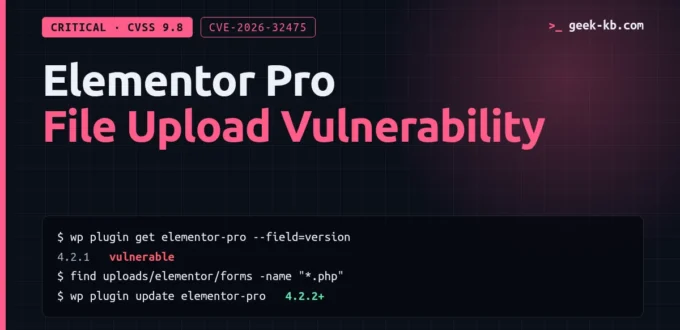
In short: The Elementor Pro file upload vulnerability (CVE-2026-32475, CVSS 9.8) affects Elementor Pro 4.2.1 and earlier and is fixed in version 4.2.2. Update the plugin, check wp-content/uploads/elementor/forms/ for PHP files, and block PHP execution in the uploads directory.
Elementor Pro runs on millions of WordPress sites, which makes any serious bug in it an immediate target. CVE-2026-32475 is exactly that kind of bug: an unauthenticated arbitrary file upload in the Form widget, rated 9.8 on the CVSS scale. Attackers began exploiting it as soon as the fix was published, and Wordfence reported blocking more than 190,000 exploit attempts.
This guide explains what the Elementor Pro file upload vulnerability is, how to check whether your site is affected or already compromised, and how to fix and harden it.
What Is CVE-2026-32475?
- Plugin: Elementor Pro
- Affected versions: 4.2.1 and earlier
- Fixed version: 4.2.2 (released August 19, 2026)
- Type: unauthenticated arbitrary file upload, leading to remote code execution
- Severity: CVSS 9.8 (critical)
The flaw is in the code that processes form submissions for the Form widget’s File Upload field. The validation routine loops over the uploaded files, but when it reaches an empty slot it returns early and skips validation for everything after it. The function that saves the files does not stop in the same place.
As a result, an attacker can submit the upload field as an array with an empty first entry followed by a PHP file. The check is skipped, the PHP file is written to disk, and the attacker can then request it in the browser to run code on your server. No account is needed.
Step 1: Check Your Elementor Pro Version
In the dashboard, go to Plugins → Installed Plugins and look at the version under Elementor Pro. With SSH access and WP-CLI it is faster:
wp plugin get elementor-pro --field=version
Anything at or below 4.2.1 is vulnerable.
Step 2: Update Elementor Pro
wp plugin update elementor-pro
wp plugin update elementor
Elementor Pro updates require an active license. If your license has expired, the dashboard will not offer the update. In that case download the latest version from your Elementor account and upload it manually, or deactivate the plugin until you can. An expired license on a public site is a common reason sites stay vulnerable for months.
Step 3: Check Whether You Were Already Hit
Updating closes the hole but does not remove anything an attacker already uploaded. The main indicator of compromise is a PHP file in the Elementor forms upload directory:
cd /path/to/wordpress

# Should print nothing
find wp-content/uploads/elementor/forms/ -type f \
  \( -name '*.php' -o -name '*.phtml' -o -name '*.phar' \)

# Wider check: no PHP file belongs anywhere in uploads
find wp-content/uploads/ -type f -name '*.php'
Next, look at your access log for form submissions around the time any suspicious file was created. Elementor forms are submitted to admin-ajax.php:
grep "POST /wp-admin/admin-ajax.php" /var/log/nginx/access.log | less

# Direct requests to files in the forms directory are a red flag
grep "uploads/elementor/forms/" /var/log/nginx/access.log
The first command is noisy, because plenty of legitimate traffic uses admin-ajax.php. The second is the more useful one: a request for a .php file under that directory means someone tried to run an uploaded payload.
If you find anything, assume full compromise and continue with a proper cleanup:
wp core verify-checksums
wp plugin verify-checksums --all
wp user list --role=administrator
Remove unknown administrator accounts, replace modified core and plugin files, and change all passwords and the salts in wp-config.php.
Step 4: Block PHP Execution in the Uploads Directory
This is the hardening step that turns this entire class of bug from “site takeover” into “junk file on disk”. WordPress never needs to execute PHP from wp-content/uploads.
nginx
location ~* ^/wp-content/uploads/.*\.(php|phtml|phar)$ {
    deny all;
}
Place this block above your generic location ~ \.php$ block, then run sudo nginx -t && sudo systemctl reload nginx.
Apache
Create wp-content/uploads/.htaccess:
<FilesMatch "\.(php|phtml|phar)$">
    Require all denied
</FilesMatch>
Test it by creating a harmless test.php in the uploads folder and requesting it in the browser. You should get a 403. Delete the file afterwards.
Step 5: Reduce the Attack Surface
- Remove File Upload fields you do not need. Many contact forms have one “just in case”.
- Turn on auto-updates for Elementor and Elementor Pro, at least for minor versions: wp plugin auto-updates enable elementor elementor-pro.
- Use a web application firewall. Exploitation started right after the patch, so the window between disclosure and your update is the dangerous part.
- Keep the license active or replace the plugin. An unlicensed premium plugin is an unpatched plugin.
Conclusion
CVE-2026-32475 is trivial to exploit and requires no login, which is why it was attacked at scale within days. The fix is to update Elementor Pro to 4.2.2 or later, check wp-content/uploads/elementor/forms/ for PHP files, and block PHP execution in the uploads directory so the next file upload bug, in any plugin, cannot be used the same way.
Frequently Asked Questions
Which Elementor Pro versions are affected by CVE-2026-32475?
All versions up to and including 4.2.1. The fix is in Elementor Pro 4.2.2, released on August 19, 2026.
Does an attacker need an account to exploit it?
No. The flaw can be exploited by an unauthenticated visitor through the File Upload field of the Elementor Pro Form widget.
How can I tell if my site was already compromised?
Look for PHP files in wp-content/uploads/elementor/forms/ and for requests to files in that directory in your access log. A PHP file there is the main indicator of compromise.
Is the free Elementor plugin affected?
CVE-2026-32475 is in Elementor Pro, the paid add-on. The free Elementor plugin has had separate, less severe issues, so keep both updated.
What if my Elementor Pro license has expired?
You will not receive the update automatically. Download the current version from your Elementor account and install it manually, or deactivate and delete the plugin until you can.
Related articles: your server-side PHP matters as much as your plugins. See how to patch the PHP 8.4 phpAfterShell vulnerabilities.
Sources: SecurityWeek report on the Elementor Pro exploitation, Wordfence advisory.